Built for people who run more than one agent at a time.
Patch is a chat app for a team of AI agents on your Mac. Its agents work together: agents on a machine consult each other, once you turn consults on, and a project manager hands work down through a Queue to workers, who each report back whether the work landed. This is what it does, one feature at a time, and what each one needs from you. Use the Viewer on the Mac running Patch.
The current customer offer runs on one Mac. Phone access and adding other machines are not currently available with this offer. Linux source builds are limited to invited collaborators.
It asks when it needs you
When an agent needs a decision, its turn ends with a question. Pick an answer or type one, and it carries on from where it asked. Alerts lists what is waiting on you, and you can answer there without opening the thread. When nothing waits, it says so.
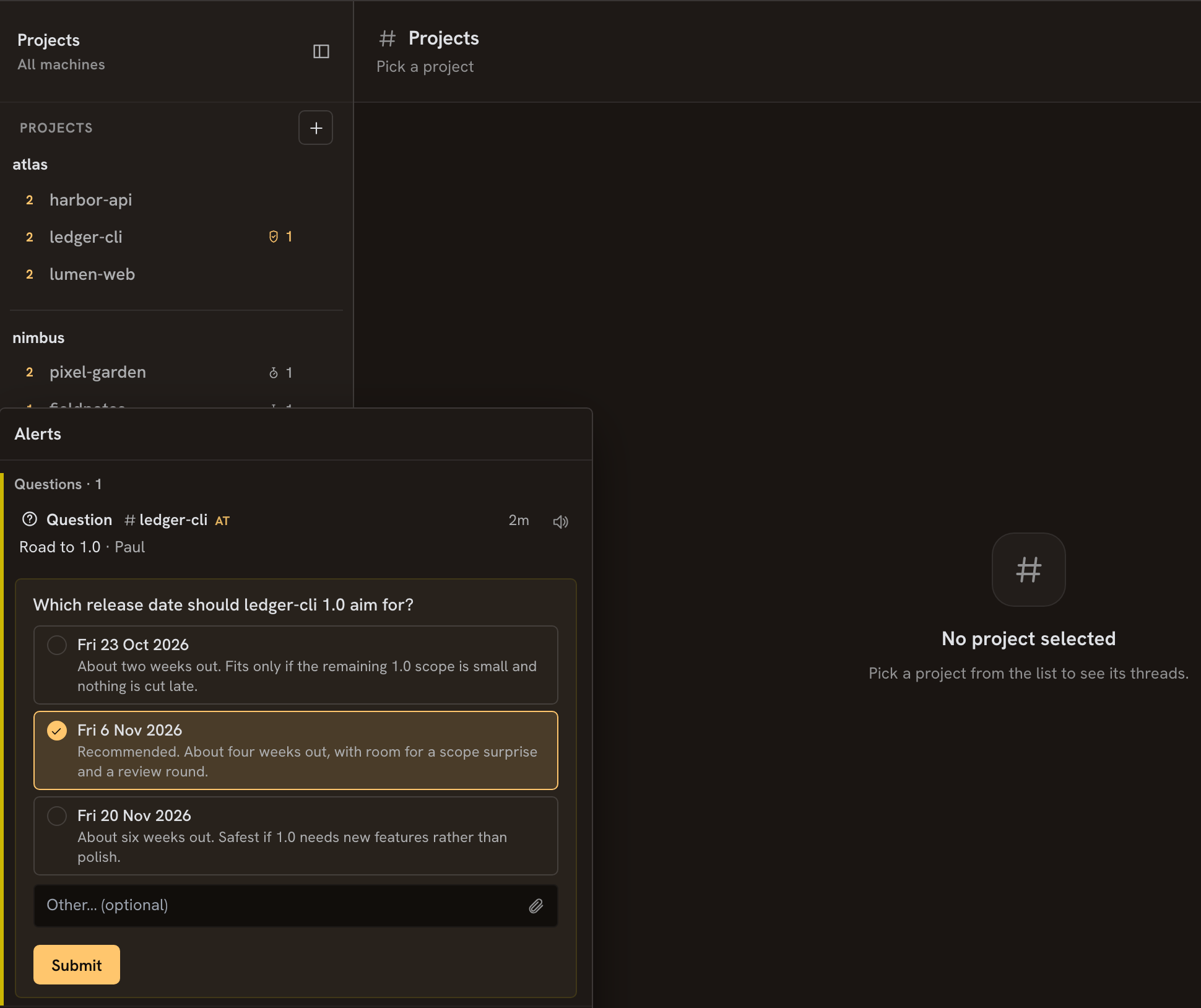
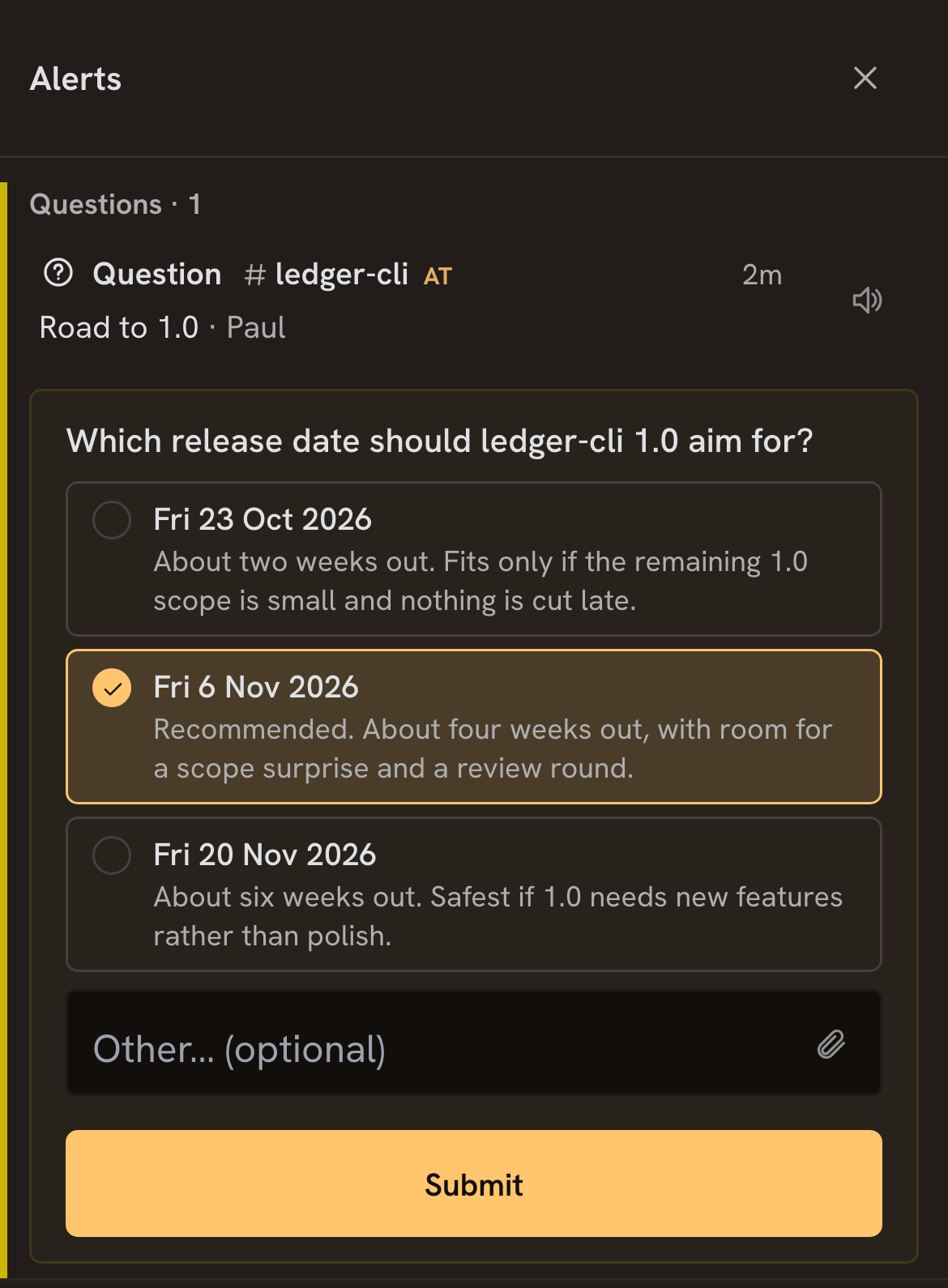
- A question waits until you answer it. It stays open in the conversation, through a reload and when you reopen the Viewer on the same Mac. An ordinary reply counts as the answer too.
- Alerts lists what is waiting on you. A thread is there when its agent has asked you something, or is waiting on an approval from you. Answer a question in Alerts, or open its thread from there. In a project, the threads waiting on you are listed under Needs you.
- Alerts count what is waiting. If a question starts waiting while you are in another thread, the Viewer shows it beside the Alerts button, and the button’s number is how many alerts need you.
- You decide which agents consult each other. Consults are off until you turn them on for a machine. Then the desks of one project, the threads its roles answer consults from, ask each other directly, and any other pair comes to you as a request: approve it once, for those two threads, or for those two roles.
An alert reaches you only while the Viewer is open somewhere. You can turn on a browser notification for when its tab is in the background.
Steer it while it works
Its thinking and every step it takes land as they happen. Send a message mid-turn and it waits until the turn settles, or stop the turn and send it now. What the agent had already written is kept.
Illustrative example
Read 2 files
Editing import.js8s
Also check the export.
Waiting on this device — sends from here.Stop and sendSend now — stops the reply
Working…1m
It waits for the turn to settle, or Stop and send delivers it now.It waits for the turn to settle, or “Send now — stops the reply” delivers it now.
Illustration unavailable
- You decide how much of it stays on screen. Show thinking and Show tool calls are two toggles in the Viewer’s settings.
- The stream is the agent’s own. What lands is what the agent reports as it works.
- A message sent mid-turn waits its turn. It sits in the conversation marked as waiting, and goes when the running turn settles. You can edit it or drop it while it waits.
- Stop, or Stop and send. Stop ends the turn and keeps what was already written. Stop and send ends it and delivers your new message at once.
- The work doesn’t need the Viewer. Send the work, close the Viewer, and return on the same Mac to pick up where you left it. The Mac must remain awake for work to continue.
Work goes down, reports come back up
Agents in Patch are arranged, not piled up. A thread holds a role, a project manager hands work down to workers, and every worker reports back whether its work landed. Who may talk to whom is yours to grant.
Illustrative example
Agent map
CSV fixesProject manager
Import crash fixlanded
Own worktree · pushed · fix/csv-import
Export checknot landed
Not landed.1 file uncommitted · 1 commit unpushed
Export checklanded
Own worktree · pushed · fix/csv-export
Work goes down.
Reports come back up.
Illustration unavailable
Workers and the Queue are opt-in per project, take a setup step, and need the project’s folder to be a git repository. The Queue is on project manager threads only. Consults stay on one machine.
- A thread takes a role from its Agent Profile. Project manager, technical writer, UX designer, brainstorming partner, architect and test engineer are among the roles Patch ships. Brief a project manager directly.
- A role has a desk. A desk is where consults for that role land. Settings lists them under Desks.
- A project manager thread keeps a Queue. It is an ordered list of work. While Queue running is on, Patch starts the next items as workers, up to the Queue workers at once you choose.
- Each worker has a copy of the project of its own. It works on its own branch, in a git worktree or a clone taken from a pool.
- A worker’s report says whether the work landed. It reads landed or not landed, with the branch and whether it was pushed. The Workers pane lists every worker a thread started.
- The Agent map draws the whole tree of your projects, threads and workers on your Mac, live.
- You stay in charge. Consults are off until you turn them on for a machine. Then the desks of one project ask each other directly, and any other pair comes to you as a card to approve: once, for those two threads, or for those two roles. The worker limit is a number you set. You choose whether an agent has to ask before it arms a timer. Whatever is waiting on you is in Needs you.
Two of the films tell this part: The Org Chart shows one instruction going down, and The Receipt shows the report coming back up.
Run a whole team, in parallel
Every project works in its own folder, with its own conversation and threads, so several can be working at once. You move between them from one list in the Viewer, not one window at a time.
Illustrative example
Agent map
Two projects working at once, and the messages between their agents as they travel.
Illustration unavailable
PM fan-out is opt-in per project, takes a setup step, and needs a git repository. Parallel projects need none of that: they work as soon as you open a second project, on any folder.
- Patch puts no limit on projects. Run several projects on your Mac, subject to its capacity and your Claude or Codex plan.
- Brief a PM agent and it fans the job out. It hands the pieces to workers, and each one works in its own copy of the project.
- Each copy is a git checkout. It is a git worktree, or a clone taken from a pool, so the project’s folder has to be a git repository.
- You set how far it fans out. The number of sub-agents a project runs at once is a limit you choose.
Give an agent a role
Pick an Agent Profile for a thread and it works as a project manager, a technical writer, a UX designer or a brainstorming partner. Patch ships the roles. Edit them, or write your own, like an account researcher or a copy editor.
Illustrative example
Settings · Release notes
Agent
Agent ProfileActive
Sedrick (bundled)
Technical writer and copywriter — verified documentation, user guides, reference and product copy.
Gives the agent in this thread a reusable role — its instructions are applied to every message here. Other threads are unaffected.
Release notesSedrick
Draft the release notes.
Release notes: the CSV import no longer crashes on large files.
Shorter, please.
Fixed: the CSV import crash on large files.
Its instructions go out with every message you send there.
Illustration unavailable
- A role belongs to a thread. Pick it under Thread settings, or when you create the thread. No other thread is affected.
- Its instructions go out with every message you send there. Scheduled and heartbeat runs do not carry them.
- The bundled roles are yours to change. Edit one and your version is used from then on, or duplicate it to build a variant. Add Agent Profile makes a new one from a name and its instructions.
- A role is plain instructions. Write what the job is and how you want it done, up to 16,000 characters, and any thread can take it on.
Schedule & heartbeat
Wake an agent on a schedule or a heartbeat: a morning digest, a weekly report, nightly dependency bumps. No one has to be watching.
Illustrative example
Scheduled
My Mac1
Morning digestDaily · site
Running
Agent map
No one has to be watching.
Illustration unavailable
The work happens on your Mac, so your Mac has to be awake when the task is due.
/schedulesets a task from the conversation. Give it a prompt and when to run: at a set time, on an interval, or on a cron expression./heartbeatwakes the project’s agent on an interval. It points the agent at a checklist file in the project’s folder,HEARTBEAT.md. The agent does whatever is due and otherwise stays quiet.- Neither one touches the conversation you’re having. Unattended runs leave your own thread in that project alone.
Full-text search
Search the conversation history of your projects on your Mac. What an agent did last week is a search, not a hunt.
Illustrative example
Search
csv import
Searching all machines — message content and titles
My Mac3
Import guidedocs2h
…so it documents the CSV import limits for large files.
CSV fixessite2d
Fix the CSV import crash on large files. Then check that the export still works.
Streaming importapi6d
Done: the CSV import now streams large files instead of loading them whole.
Search the conversation history of your projects on your Mac.
Illustration unavailable
- One search covers every project. Your Hub keeps the messages of every project on your Mac and searches them together.
- The history is on your hardware. The Hub runs on your Mac, so what it searches is stored there and not with us.
Every conversation has a place
Run agents in separate windows and each one is a tab of its own. With several going, you lose track of which is which, and of which one has stopped to wait for you. In Patch every conversation belongs to a project on your Mac, and Alerts lists the ones waiting on you.
Illustrative example
Projects
All machines
api
docs
site1
Needs you · 1
CSV fixesnow
Keep the old column names, or rename them?
Changelognow
Listing the changes since the last release.
general2h
The build passes on the new branch.
A question waiting on you shows on the Alerts bell and under Needs you in its project.
Illustration unavailable
The Agent map only navigates: nothing on it starts, stops or answers an agent. In Alerts, approval buttons decide that one request. An answer that lasts, and how far a consult approval reaches, are chosen on the card in the thread. If a row has no approval buttons, open the place it names to decide.
- Projects, Search, Scheduled and the Agent map are on the rail, with the Alerts bell below them.
- Projects lists every project on your Mac. Open one for its conversation and its threads, with the ones waiting on you under Needs you.
- Answer a question from the Alerts panel. A waiting question with one short list of choices shows them on its Alerts row, with a field to type an answer instead. A longer one opens its own form there, under Answer here. Either way you don’t open the thread.
- The Agent map is one live tree of your projects, threads and workers on your Mac. It starts on Working now, and can show Last 24 h or All time. Select a thread that is waiting on you and the map says so and takes you there.
- Bookmark a reply. Give the bookmark a title, and search your bookmarks from the Bookmarks pane.
- Export a thread, or several in one file. As Markdown, text, JSON, HTML or PDF.
- Search covers every turn. Search the conversation history of your projects on your Mac: see Full-text search.
An AI helper for prompts and replies
A helper model works beside the agent. It rewrites what you are about to send into a clearer brief, offers a next message to send, and puts a short summary under a long reply, so you can read the gist before the whole of it.
Illustrative example
In Interceptive, the rewrite goes only if you choose it.
Illustration unavailable
The helper needs a model you set up on that machine, under Settings ▸ AI helper. Either a hosted model through your own OpenRouter key, kept on that machine, and then the draft or reply goes to that provider; or a model served by Ollama on that machine, which keeps the text there unless you pick one of Ollama’s cloud models. A suggestion is written from your last message and the agent’s reply, which go to that same provider unless you pick another for suggestions. Rewriting starts in Manual, and summaries and suggestions are off until you turn them on.
- Rewrite a draft three ways. Manual rewrites it when you ask, with the enhance button beside Send or a keyboard shortcut, and shows you the result to use or keep. Seamless rewrites your message and sends it when you press Send. Interceptive shows you the rewrite before every send.
- Typed answers too. In Seamless or Interceptive, an answer you type to an agent’s question is rewritten the same way, including one typed in the Alerts panel.
- A rewrite never holds a message for long. If one on send takes more than 30 to 60 seconds, longer for a longer message, the message goes as you wrote it. A slash command always goes as you typed it.
- Auto-summary under a long reply. Turn it on and the newest reply of 2,500 characters or more gets a short summary beneath it, as a paragraph or a bullet list. The length is a setting.
- Summarize any reply. The Summarize button on a reply asks for its summary by hand, whatever its length, with Auto-summary on or off.
- A next message, offered under the latest reply. Turn on Suggest a next message and one suggested message appears under the agent’s latest reply. Click it to send it as written; send anything else and it goes away. It never sends itself.
Tools beside the conversation
On a wide window, a rail of tool panes sits beside the conversation: what the agent changed, the folder it works in, the files it hands you, and what is set to run later. One click opens each, with the thread still in view.

The rail shows on a window wider than 1,024 pixels. Changes needs the thread’s folder to be a git repository.
- Changes shows the folder’s git changes. Committed and Not committed, each file with the lines added and removed, and its diff opened beneath it.
- Files is the folder itself. Browse it as a tree, find a file by name, and edit it in a tab that saves back to the folder on your Mac.
- Outputs reads what an agent hands you. Press Open on a file an agent presented in the thread, and it opens here: Markdown, an image or a video.
- Waiting lists what is set to run later. The timers and scheduled tasks for this thread and its workers, or for the whole project.
- Workers and Bookmarks are panes too. Workers lists every worker the thread started, and Bookmarks holds the replies you bookmarked.
Works in your real folders
The agent works in the folder itself: a code repository, a folder of drafts, your notes. It reads the instructions you keep there, so what comes back is your files, changed, not text you have to copy over.
Illustrative example
~/site · My Mac
- CLAUDE.mdread: your instructions
- src/import.jschanged +14 −3
- src/export.jschanged +2 −1
- README.md
Your files, changed, in the folder itself.
Illustration unavailable
- A project is a folder on your Mac with its own conversation and threads. Open a project on a folder and everything said in it happens there. The folder can be a code repository, a working folder or a notes folder.
- Attach whatever the job needs. Any type of file can go with a message: pick it, paste it, or drop it on the conversation.
- The agent runs on your Mac. Your Runner starts it there. Agents run on your Mac, never on a machine of ours.
- It is the Claude Code or Codex you already use. Patch runs it with your own Claude Code or Codex subscription, signed in the way it already is on your Mac.
- None of it reaches us. Your files, the agent’s output and your conversation history are kept on your Mac. What the agent reads goes to your AI provider, under its terms.
Why Patch
Patch runs Claude Code or Codex, signed in the way it already is on your Mac. This is what it adds.
- A team with a shape. Agents in separate terminals don’t hear from each other, and each one reports only to you. In Patch, threads hold roles, agents on a machine consult each other through desks once you turn consults on, and a project manager’s Queue hands work to workers who report whether the work landed. Work goes down, reports come back up has the detail.
- Claude Code first, Codex beside it. Patch runs Claude Code unless you choose Codex. The choice is a setting on each project and each thread, so the two can run side by side.
- Your Claude and Codex usage. Settings has one page, Accounts and Usage, for the Claude account signed in on your Mac: its 5-hour and 7-day usage and when each resets, as Claude Code reported them on its last turn, with Codex usage beside them.
- One for each person, not a team app. Patch is built as one person’s tool on that person’s Mac. Everyone on a team runs their own, with a team of agents of their own. There are no user accounts: whoever holds a Hub’s token sees and drives everything on it, so each person runs their own Hub and keeps its token to themselves.
- Your Mac, your files. Patch is a service on your own Mac, and the agent works in your real folders. Work continues while the Mac remains awake, even after you close the Viewer.
- One panel, one map. Alerts for what is waiting on you, and an Agent map of your projects, threads and workers on your Mac, drawn as a live tree. Every conversation has a place has both.
- The Viewer on your Mac. Open the Viewer on the Mac running Patch to send messages and follow the work. No server of ours sits in between.
- Work that starts without you. Schedules and heartbeats wake an agent when no one is watching. An agent can also set a watch for its own thread, to check back on something later. A watch always has an end: a number of times, or a date.
- The small things, daily. Rewrite a draft with a preview before it goes, or on every send. Get an Auto-summary under a long reply. Play a reply aloud. Bookmark it, export it.
- Yours to run. You sign in to your own Hub with its token, and there is no account to create with us. Install replacement builds using the instructions supplied with your copy. A dead-man ping and a disk alert are there to turn on.
- Alongside the tools you already use. Patch doesn’t replace Claude Code or Codex: it starts the one you choose on your Mac, under the subscription and login it already has there. Keep using them, and the desktop and terminal apps you already use, on the same Mac and projects while Patch runs. Patch keeps its own workers out of each other’s checkouts, but it doesn’t see a session you start outside it, so two agents editing one folder at once is yours to avoid.
Some of these need something of yours. Prompt rewriting and summaries need a helper model you configure, and reading aloud needs a voice provider’s key. The dead-man ping and the disk alert need a monitor address to report to. A watch can be set to ask you first.
Run it on your own Mac.
Patch is opening to a small group first. Tell us what you’d use it for, and we’ll email you when there’s a place for you.
Request accessOne Apple silicon Mac · Claude Code sign-in with your own subscription · Codex optional
The current customer offer runs on one Mac. Phone access and adding other machines are not currently available with this offer. Linux source builds are limited to invited collaborators.